M365 Companion Apps: A (P)review
What Are They?
The M365 Companion Apps are a set of three mini-applications meant to provide specific productivity benefits to users running the M365 Desktop Apps on Windows 11.
People Companion
"Allows users to quickly look up anybody in their enterprise and browse organizational charts, view contact information, and easily communicate with colleagues."
File Search Companion
"Enables users to quickly find Microsoft 365 files, preview file contents, send files to colleagues, and easily access recently used documents."
Calendar Companion
"Lets users quickly access their Microsoft 365 calendar, view upcoming events, join meetings, and search appointments directly from the Windows taskbar."
Note: The above info has been taken from the MS Learn pages, so click through below to get more info, if you're interested:
 nicholasswhite
When Are They Coming?
I'm writing this post because I received these apps as part of the latest Current Channel Preview update to the M365 Apps. Most people aren't going to be running this version in production, so there's nothing to worry about right now.
As of writing, the page linked above does have a "Deployment Schedule" section which calls out the availability within the Preview Channel, but there's nothing about a wider rollout there, nor in the Message Center or the M365 Roadmap, so the answer could be anywhere from a month to 6 months away.
I'll keep an eye and update this post as necessary.
However, many people struggle to keep on top of communications for things, hence why I'm writing this PSA as I imagine this one could crop up on people and cause a bunch of user confusion, but more on that in a bit.
How Do I Manage Them?
Managing whether these apps will be installed so you're prepared for when it eventually hits the Current Channel or Monthly Enterprise Channel is surprisingly simple.
Head to config.office.com (assuming you have the correct least-privileged Entra Role, Office Apps Administrator), then:
- Hit Customization
- Modern Apps settings
- Microsoft 365 companion apps (preview)
- "Enable automatic installation of Microsoft 365 companion apps"
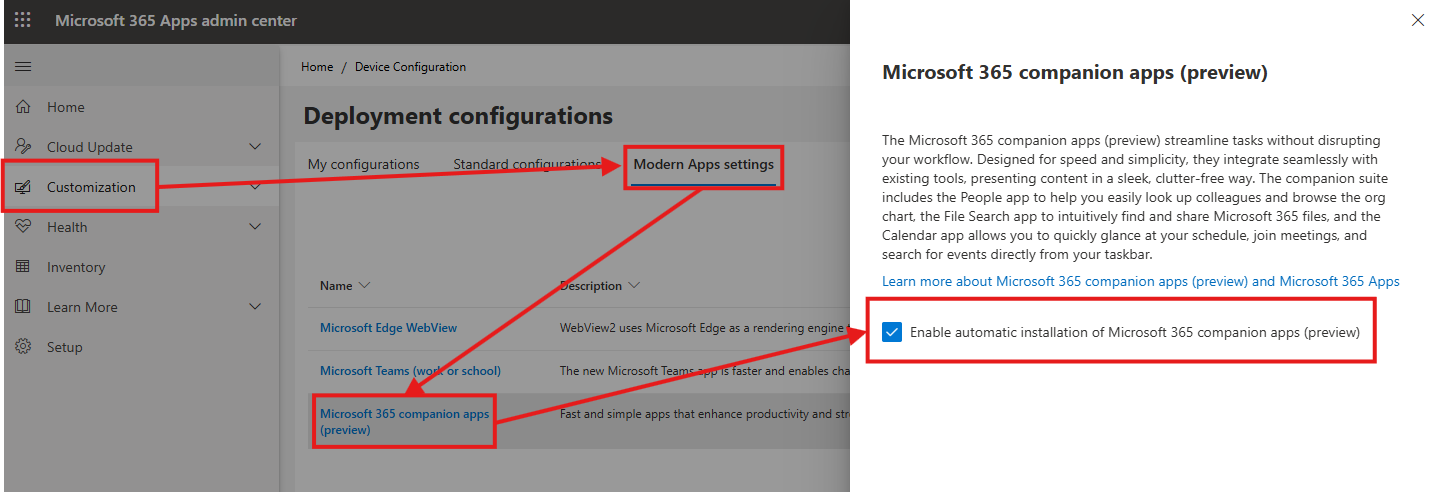
This box is ticked to enable by default, so if you don't want them to install, you'll need to un-tick that box.
What Do I Think?
Okay, prefixing this with a very strong "in my opinion"...
I noticed this option in the Office Apps admin center a month or two ago but didn't really pay any notice. It was only when they all ran automatically and were on my taskbar after a reboot that I went back and checked the setting.
For me, they don't really provide any value over existing workflows I would look at or need any of that information.
File Search I do via hitting the Windows key and typing, I check my Calendar in either Outlook or Teams (as the "New Calendar" option means they're the same thing), and depending on whether I need to email or message someone, I'll do those things respectively within Outlook or Teams too.
The big thing that bugged me is all three apps automatically running when I wasn't expecting them, which I imagine would confuse standard users too.
Now, there are settings available to not only choose whether they start automatically and minimised, but whether they also take over key combos in each application, as seen below:
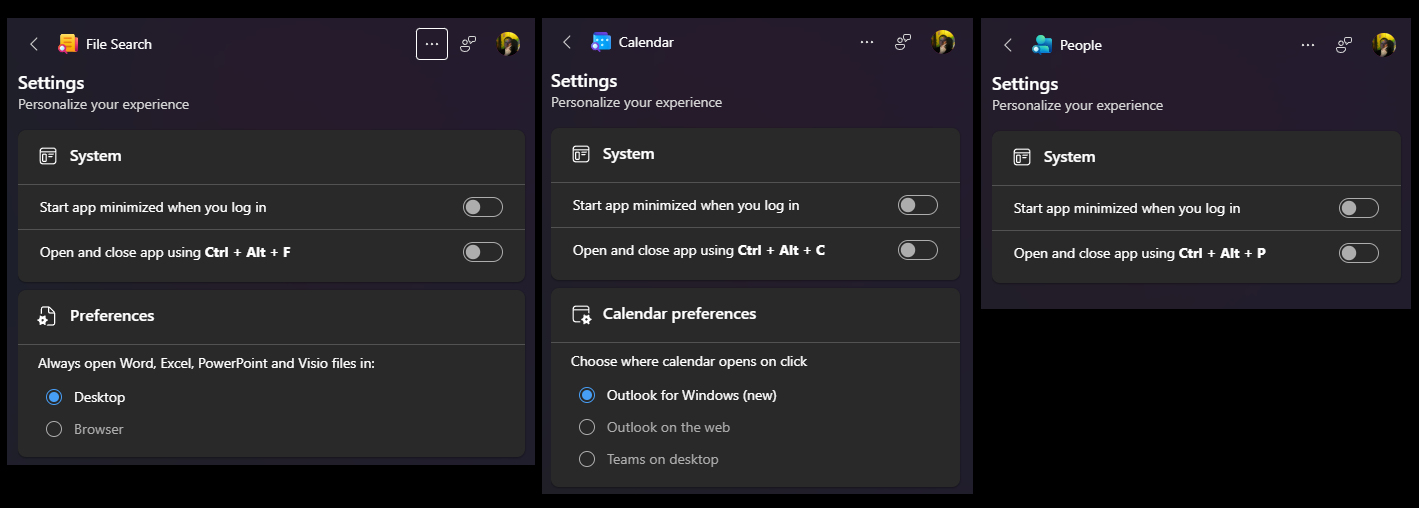
But as you can see, they're just acting as dumb shortcuts. They don't do anything themselves, just call other installed apps, which honestly just seems counterintuitive.
The other problem is, as admins, we don't get to control that default behaviour. Our choices are either, from least to most likely:
- Let the apps install and properly communicate out the changes to users.
- Let the apps install and expect user confusion.
- Disable the apps installing entirely.
None of these options are great. I'm a BIG proponent of not messing around with the user space, be it customising the start menu or setting user defaults, mostly because policy will override user choice, but this option is problematic here.
My primary concern is about the user confusion and tickets this rolling out broadly may cause IT Teams, especially given the option to deploy them is on by default.
Obviously, every admin has to make a decision on for their environment, but as it stands, I can't really suggest leaving that tick-box enabled, and that makes me sad.